
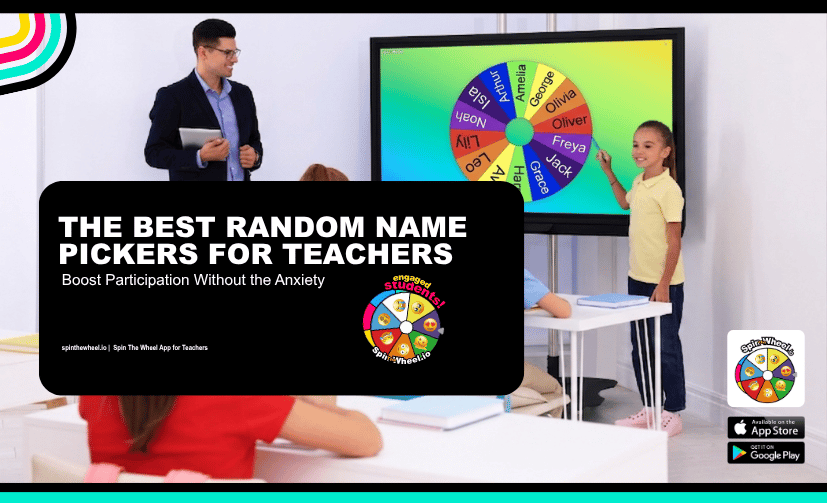
The Best Random Name Pickers for Teachers: Boost Participation Without the Anxiety
Every classroom has the same unwritten rule: when a question is asked, the same five students immediately wave their hands while everyone else avoids eye contact.
Relying solely on eager volunteers skews your formative assessment data and lets quieter students drift into the background. However, traditional 'cold calling' can spike student anxiety, making participation feel like an unexpected penalty.
A digital classroom name picker (or random student generator) solves this imbalance. By shifting the selection process from the teacher to an impartial digital wheel, you create a transparent, predictable routine that keeps students attentive.
Below is a practical guide on how to integrate a student selector into your daily routine, the technical features you actually need, and how to manage the tool without stalling your lesson momentum.
How a Classroom Randomiser Alters Room Dynamics
Using a wheel of names for teachers changes the psychological environment of a classroom in three distinct ways:
- Eliminates Perceived Bias: When you manually select a student, they often internalise it as a personal target ('Why is the teacher picking on me?' ) A digital tool shifts the responsibility to pure mathematics. Students accept the random outcome because the process is entirely visible and fair.
- Lowers the Friction of Volunteering: For introverted students or English as an Additional Language (EAL) learners, the act of raising a hand carries heavy social weight. When the wheel selects them, that social pressure vanishes. They aren't putting themselves on display; they are simply participating in a structured classroom routine.
- Maintains Latent Attentiveness: If students know participation is completely randomised, they cannot safely tune out after a classmate answers. They must maintain a baseline level of focus because their name could be up next.
Technical Features Teachers Need
Many online name pickers are cluttered with intrusive ads or lack basic data persistence. When evaluating a tool for your interactive whiteboard, Chromebooks, or tablets, prioritise these functional elements:
Multi-Wheel Simultaneous Spinning (Up to 8 Wheels)
Advanced lesson plans often require more than just picking a single name. If you are running complex classroom activities, you need a randomiser capable of spinning up to 8 wheels at the same time. This allows you to simultaneously pick a student, a task, a point value, or a discussion topic with a single click, saving massive amounts of transition time.
Custom Musical XML
Music teachers can now attach actual sheet music directly to wheel entries using MusicXML support.
This powerful new feature allows Spin the Wheel to display musical notation inside wheel segments, making it perfect for randomised classroom activities, rehearsals, sight-reading exercises, composition prompts, and lullaby selections.
Rather than relying on plain text, educators can add fully notated musical passages to each wheel entry. Every spin instantly reveals a new piece of sheet music for students to perform, analyse, or practise, bringing variety and engagement to music lessons while keeping activities fresh and interactive.
Interactive Whiteboard Optimisation
The interface needs clear, high-contrast typography that is legible from the back row of the classroom. Furthermore, if you use a Promethean or SMART Board, the touch targets must be large enough to handle physical taps from students without misclicking.
Real-World Adjustments: Handling Classroom Friction
A randomiser is a tool, not a substitute for classroom management. If implemented poorly, it can create awkward silences or stress out struggling learners. Use these strategies to keep your lessons moving smoothly:
- The 'Pass to a Peer' Rule: Never let the wheel trap a student who genuinely does not know an answer. Establish a rule where a selected student can opt to call on a 'co-pilot' for help. This keeps the environment safe while ensuring the original student still hears the correct response.
- Build in Think-Time First: Never spin the wheel immediately after asking a question. State the question, give the entire room 10 to 15 seconds of silent think-time (or a quick turn-and-talk with a neighbour), and then spin. This guarantees that the student selected actually has a thought prepared.
- Pre-loading Specific Odds: For revision games or targeted intervention, look for a tool that allows duplicate entries. If a specific team or concept needs more airtime, you can intentionally weight the wheel to reflect that day's academic goals.
How SpinTheWheel.io Compares to Standard Name Pickers
Many free tools offer a generic, sterile pie-chart design. To maintain engagement over a 39-week school year, visual and auditory novelty matters.
SpinTheWheel is explicitly trusted by teachers worldwide because it moves past the basic static wheel, building a vibrant educational ecosystem supported by dedicated teacher blogs and a robust social media community where educators actively swap lesson ideas, custom wheels, and setup tips.
SpinTheWheel Core Capability:
✅ Multi-Wheel Execution: Spin up to 8 wheels simultaneously
✅ Post-Spin Reactions: Vibrant celebratory cues (Confetti, hearts, butterflies)
✅ Audio Variety: Musical XML customisation, post spin and during spin sounds
✅ Community Support: Active teacher blogs & social media networks
✅ Hardware Compatibility: Full optimisation for Smartboards, iPads, and laptops + Mobile App
Standard Online Pickers:
❌ Multi-Wheel Execution: Limited wheel number
❌ Post-Spin Reactions: Basic static text popup
❌ Audio Variety: Basic buzzer
❌ Community Support: No educator resources or community
❌ Hardware Compatibility: Often broken by ad-blockers or small screens
Matching Themes to Your Curriculum
Instead of using the same visual setup every day, you can rotate themes to match your current instructional units, complete with satisfying post-spin reactions like digital confetti bursts, animations, and sound effects that make winning an activity feel genuinely special:
- Use the Underwater Theme during primary marine biology or science units.
- Deploy the Starry Space Theme to complement astronomy lessons or STEM challenges.
- Utilise the Koala Theme for early childhood reading circles to add a friendly, non-threatening element to morning meetings.
2-Minute Setup Guide
For teachers who need a fast transition between periods, setting up your digital roster should take less than two minutes on an interactive whiteboard.
1.Input Names :Under 60 seconds.
Copy and paste your student names from your school's grading portal directly into the wheel editor. No account creation or email verification required.
2.Configure Multi-Wheel Layout: 30 seconds.
Decide if you need a single roster wheel, or add up to 8 wheels side-by-side to track names, point values, and project prompts simultaneously.
3.Select Audio & Post-Spin Style:15 seconds.
Choose from multiple sound options, and toggle on celebratory post-spin animations like confetti to maximise student anticipation.
4.Test Board Scaling: 15 seconds.
Drag the window onto your Promethean or SMART board to verify that text is cleanly visible from the back row and that touch targets match your physical taps.